Resource Management Techniques: Controlling Supply and Demand for Project Success
This document is about Resource Supply and Demand Management in an Organisation. It is a strategic guide to balancing workforce capacity with project work demand using Timebars Resource Scheduler and Costbars Project Pipeline Scheduler productivity tools.
Managing Competing Demand:
Timebars: Real-Time Resource Visibility Across Projects
Resource managers face a specific operational challenge: every project manager wants more of the same people, and most of them want them at the same time. Without a consolidated cross-project view of who is allocated to what, the resource manager is forced to negotiate in the dark — relying on spreadsheets, emails, and memory. Timebars solves this by providing a live, cross-project visibility layer over the entire resource pool, so supply and demand imbalances surface before they become crises.
Costbars: Portfolio Planning and Capacity Forecasting
Project Portfolio managers operate at a different altitude from resource managers. Where the resource manager is resolving today's allocation conflicts on active projects, the portfolio manager is asking: which projects can we commit to starting next quarter — and which must wait? The answer depends on a single supply-and-demand equation applied at role level, across all active and planned projects, looking 12 months or more ahead.
Costbars provides the analytical engine for portfolio-level planning: the Supply vs. Demand Grid, the Five-Step PPM Process, and the Balanced Scorecard. Together these tools allow the portfolio manager to run the entire annual planning cycle, matching strategic project commitments to the organisation's real resource capacity.
Bridging the Gap
This approach acknowledges different levels of detail across the planning hierarchy. Resource Managers use Timebars to manage in-flight projects at whatever granularity suits their operational needs. Portfolio Managers, however, require a smaller and more structured view for planned or not-yet-started projects—one defined by roles (supported by Resource Managers) and required quantities rather than individual resource assignments. Costbars bridges this gap, enabling portfolio-level decisions on resource allocation without requiring the tactical detail that Timebars handles.
The Supply vs. Demand Grid: Your Master View
The Supply vs. Demand Grid (Main Menu → People icon → Supply & Demand icon) is the core analytical tool for managers using Timebars or Costbars. It presents a time-phased comparison of your resource supply against the demand placed on it by all in-flight or new projects simultaneously.
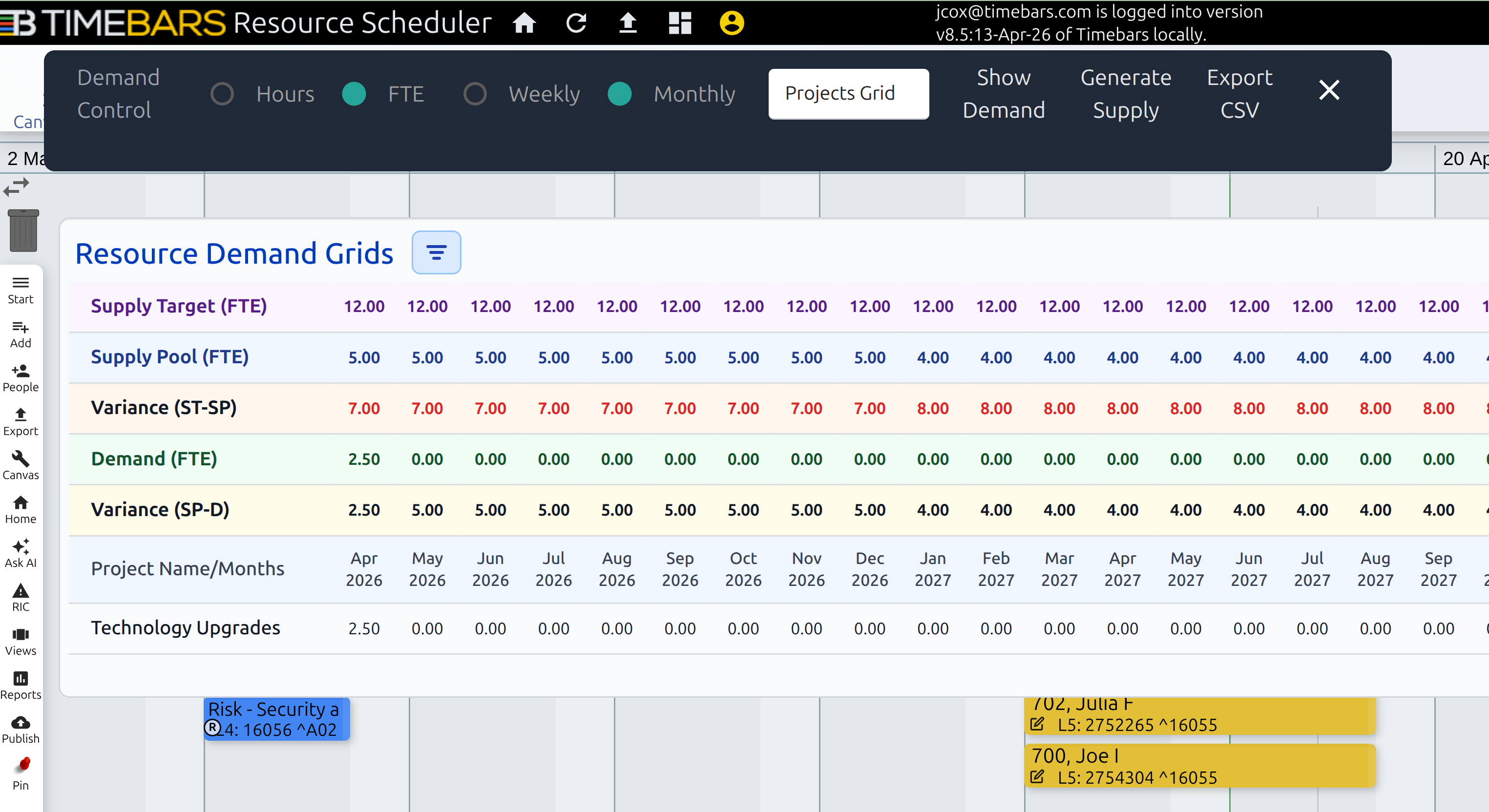
The Variance row is the resource manager's primary signal. A positive variance means capacity is available. A negative variance (shown in red) means the resource is overallocated and some project commitments cannot be met simultaneously.
For detailed help on configuring and operating the Resource Demand Grids, see the Supply and Demand Grids User Guide.
Group By Options: Four Different Questions
The Group By selector on the Demand Control Bar reshapes the grid to answer a different management question each time.
Group By: Projects Grid
"How much resource demand is each project generating, relative to its priority?"
This view shows which projects are the heaviest consumers. A lower-priority project generating disproportionate demand is a candidate for schedule slippage to free up capacity for higher-priority work.
Group By: Resource Grid
"Which specific people are overallocated, and on which projects?"
This is the resource manager's diagnostic view. When a named resource shows a negative variance, expand their row to see every project drawing on their time. You can immediately identify which project is the primary contributor to overallocation and begin the conversation with the relevant project manager.
Group By: Role Grid
"Is the organisation running short of a particular skill type?"
When multiple resources share the same role (e.g. "Business Analyst"), Group By Role aggregates their supply and the demand placed on that role across all projects. This reveals structural capacity problems — if all four Business Analysts are simultaneously overallocated across three projects, no individual reassignment will resolve it without a resourcing escalation or a schedule change at portfolio level.
Group By: Stacked Charts
"How do these patterns look in chart form?"
Use stacked charts instead of grids for presentations and stakeholder communication.
Defining Your Supply: Shared Resource Pool
The Resource Pool is the foundation of all resource analysis in Timebars. It is the authoritative register of every person and role-based capacity your organisation has available. Before any project allocation can be assessed for feasibility, the pool must accurately reflect your supply.
Below is an example Resource Pool configuration found in the tbClient Spreadsheet. See the Timebars User Guide and Supply and Demand Grids User Guide for detailed setup instructions.
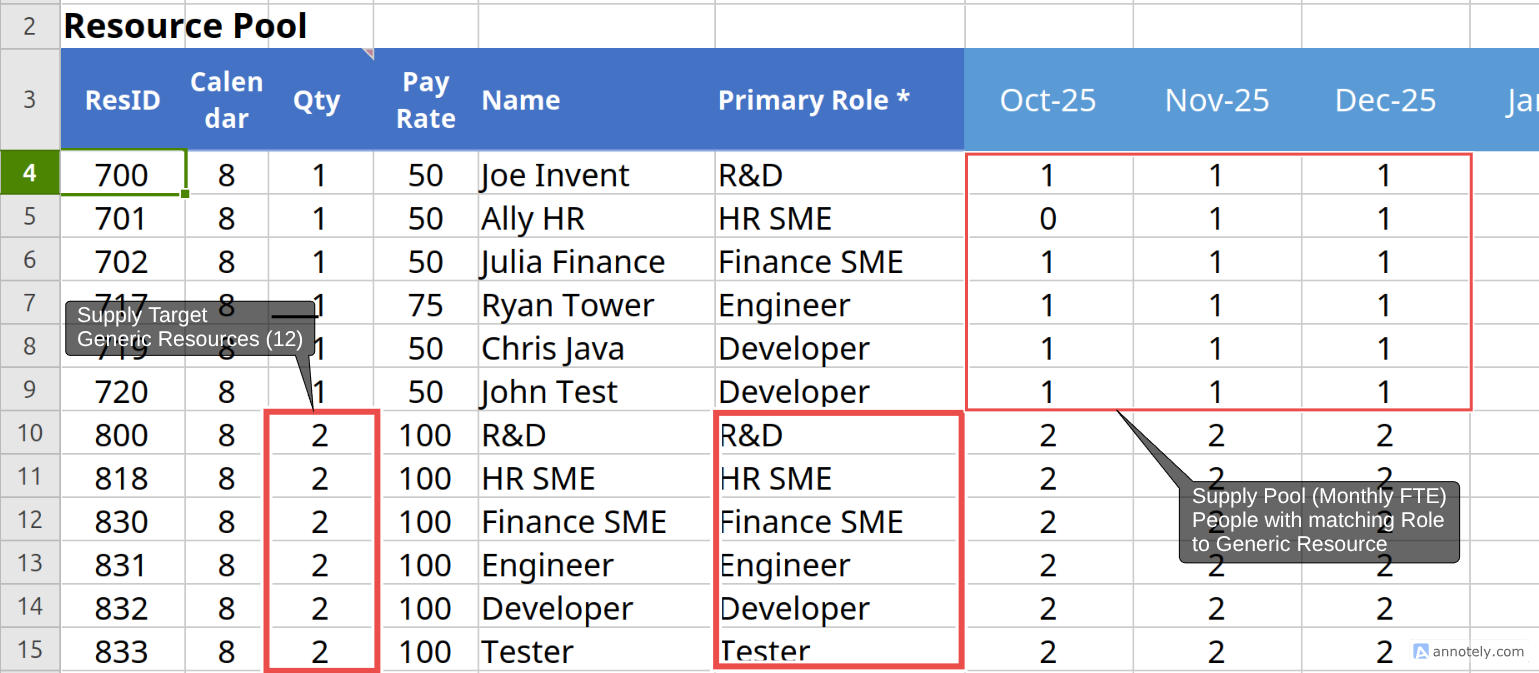
Each resource record holds:
- Name — the individual's identity for named resources, or a role label for generic resources
- FTE availability — the fraction of full-time capacity allocatable (1.0 = full-time, 0.5 = half-time)
- Metadata fields — role, skill, location, department, and any custom fields configured via the Picklists and Tagging system
Named resources represent specific individuals. Generic resources represent a pool of interchangeable capacity in a given role (e.g. "Senior Developer × 3"), useful for projects where specific assignees are not yet confirmed. Keep generic resources in the pool even alongside named assignments — they let you plan forward demand at role level before hiring decisions are made.
Shared Resource Pool Report
The Resource Pool is maintained in the tbClient Spreadsheet and synced to the App. The Shared Resource Pool report (Main Menu → Reports → Shared Resource Pool) is the full resource pool view, supporting filtering by any metadata field configured in the system. Common filter dimensions:
- Role — find all Senior Developers, Business Analysts, QA Engineers, etc.
- Skill — filter by technical or domain-specific skills captured in custom metadata fields
- Location / Department — for organisations where resources are ring-fenced by geography or business unit
- Custom fields — any picklist or tag added via the Configurable Features User Guide
The Resource Allocator draws from the same resource pool data but supports search only — use the Shared Resource Pool report when you need to filter by role, skill, or location to identify candidates before assigning. This is particularly valuable in large resource pools (50+ resources) where scrolling is impractical.
Defining Your Demand - Resource Allocator
Create Tasks for the Allocator
On your in-flight projects, create Tasks (Main Menu → Add Bar icon) which will be used to capture human resource assignments. Give the tasks a suitable name, span it out to suit the desired start and finish dates, now assign human resources to suit using the Allocator.
Assigning Human Resources - In-Flight Projects
The Resource Allocator (Main Menu → People icon) is the interactive panel for assigning resources from the Resource Pool to individual tasks on the timescale canvas. To assign a resource, drag their name from the Allocator panel and drop it directly onto the target task. The scheduling engine will automatically calculate hours and cost. For example: To complete this Task I need an HR SME, whose name is Ally HR. Span out the Allocations to start and finish the assignment to estimate when it is needed to do work.
Every assignment you make here is also a demand declaration. The hours calculated for each task allocation roll up through the project, becoming a Demand row in the Supply and Demand Grids. View the Demand Row by Project, Role etc. using the Group By button. Each Human resource dragged onto a task adds to the demand total that is measured against the Resource Pool. No assignments, no demand signal; inaccurate assignments, misleading grids.
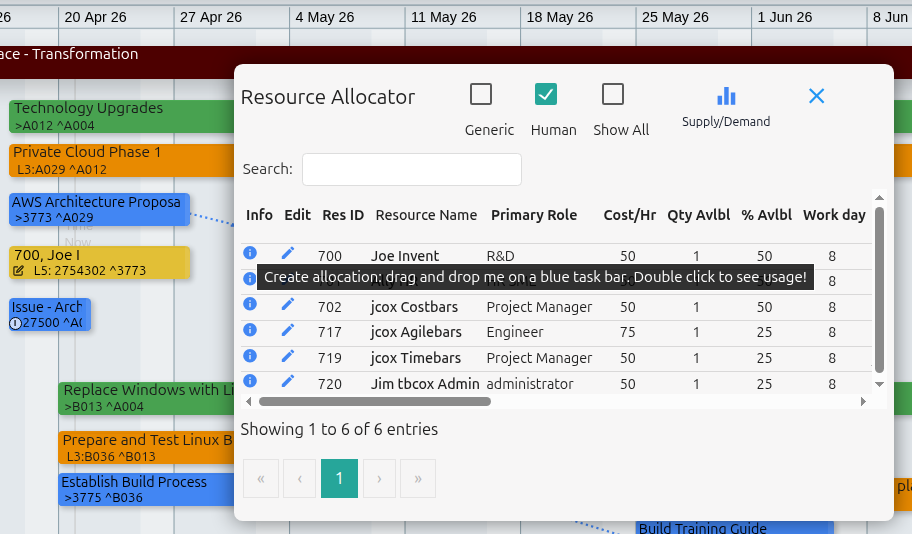
Percent Allocated Vertical bar Graph
As illustrated in the graphic below, check a resource's current usage or availability before assigning them, double-click their name in the Allocator — this displays a real-time availability breakdown on the Canvas showing their percent allocated across existing allocations and the full timescale, drawn directly on the canvas.
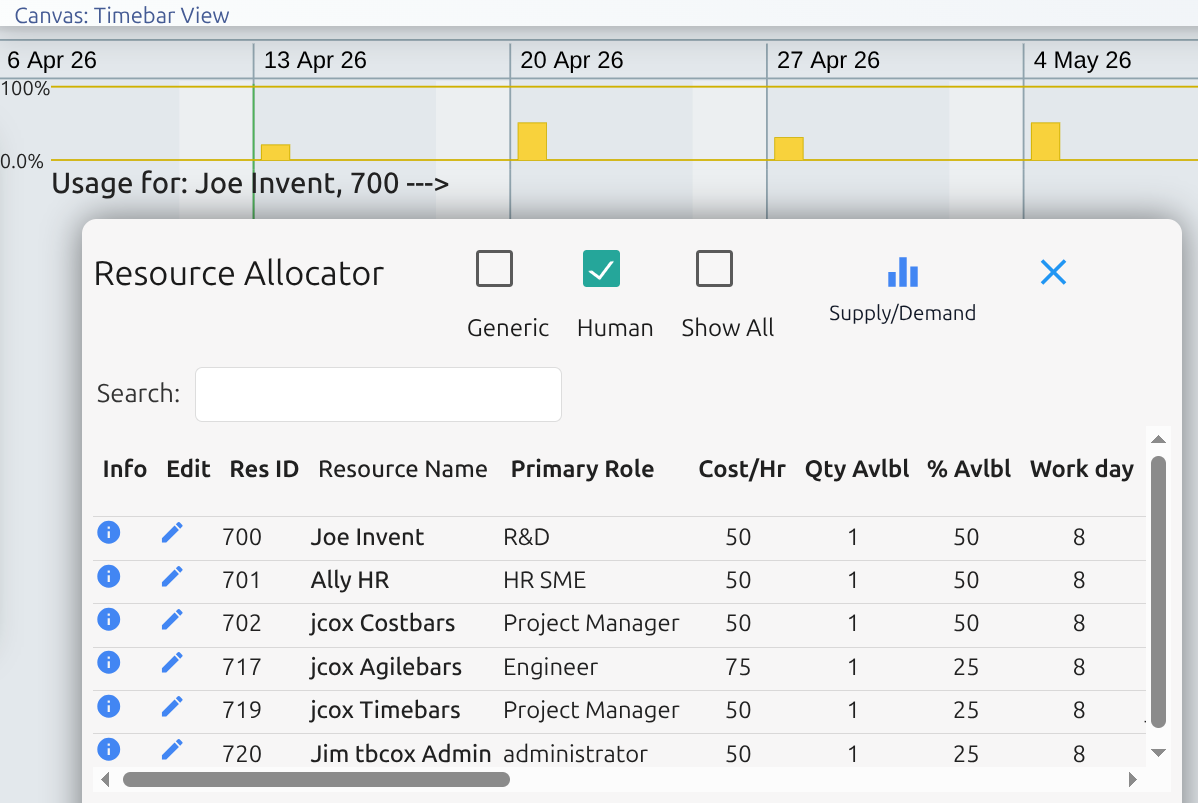
Re-assigning Resources
When reassigning a resource to resolve an overallocation conflict:
- Open the Resource Allocator (Main Menu → People icon).
- Apply search to identify candidates with the right role.
- Double-click each candidate to verify their availability aligns with the task duration.
- Assign the replacement and remove the overallocated resource.
The Allocated Vertical bar Graph and the Variance row in the Supply vs. Demand grid updates when refreshed, confirming the conflict is resolved.
Resolving Overallocation: What to Do When Variance Goes Red
When the Variance row turns negative, the resource manager has four options:
Delay a task — move a lower-priority task's start date forward on the timescale canvas using drag-and-drop. The demand shifts forward in time, relieving the pressure in the overloaded period.
Reassign to an alternative resource — use the Resource Allocator with metadata filters to find a suitably skilled resource with available capacity and substitute them on the task.
Split the allocation — reduce one resource's allocation percentage on the task (e.g. from 100% to 50%) and assign a second resource at 50%, distributing the load across two people.
Escalate to the Portfolio Manager — if no reallocation is possible without dropping scope, the conflict needs resolving at portfolio level by adjusting a project's start date or priority. This is the handoff point to Costbars and the PPM pipeline process (see the companion article Resource Management Techniques: PPM).
The Importance of the Report Date
Timebars uses a Report Date to drive the scheduling engine. This date divides all tasks across every project into three categories:
- Future tasks — not yet started; their full allocation counts toward the Demand row
- In-Progress tasks — partially complete; remaining demand is calculated from the Report Date forward
- Completed tasks — finished; they no longer contribute to demand
In-Progress Task and Allocation
The following example shows a task splitting the Report Date so it is an In-Progress Task with cost and work calculated by the scheduling engine.
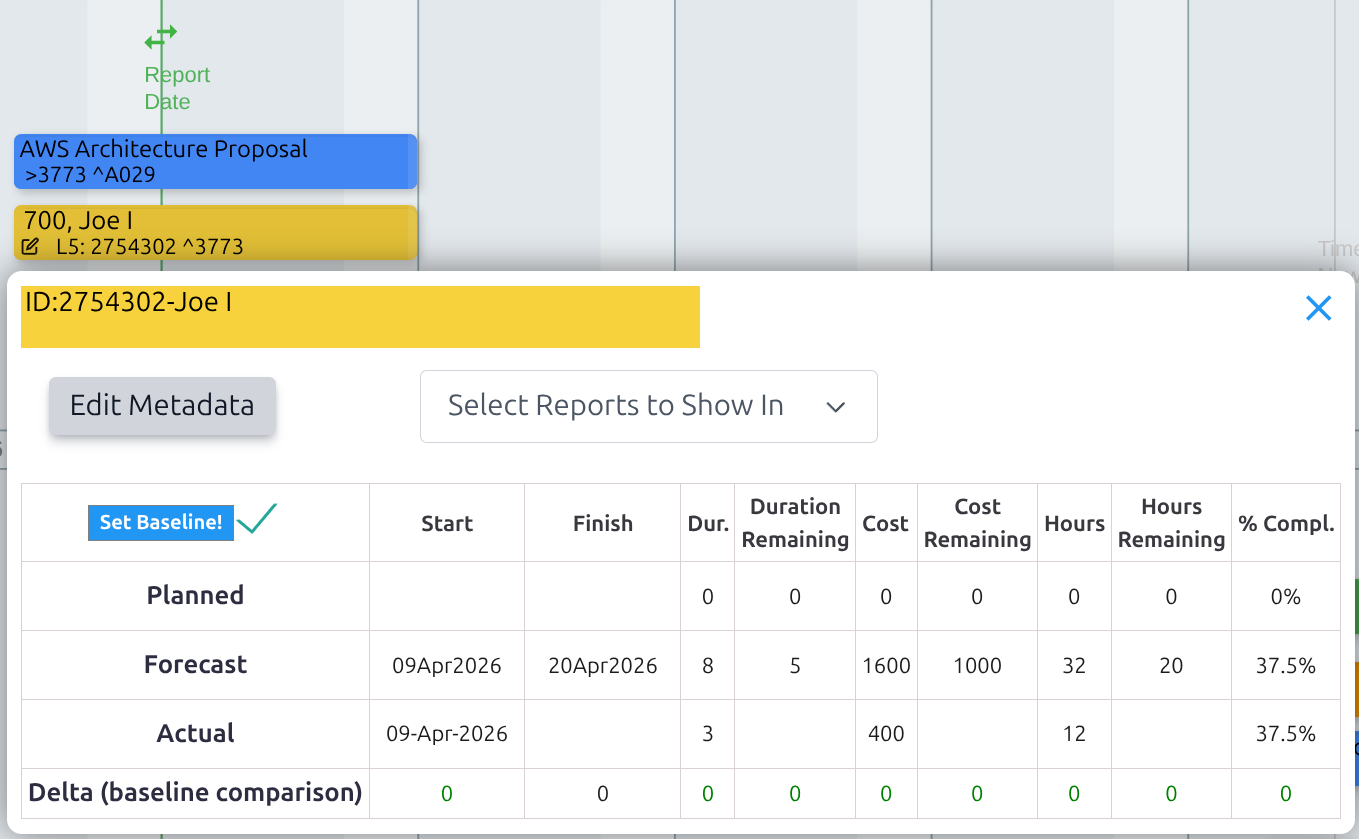 The Supply vs. Demand grid therefore always shows remaining demand, not total project scope. As projects progress and tasks complete, demand naturally decreases. Advance the Report Date regularly (typically weekly or on each reporting cycle) to keep the grid current.
See the Data Model and Scheduling Engine Guide for full details on how task calculations work.
Spreadsheet Sync for Bulk Allocation Updates
When large-scale re-planning is needed — for example after an organisational restructure or a major scope change across multiple projects — the Spreadsheet Sync feature allows allocation data to be updated in bulk via a familiar spreadsheet interface, then synchronised back into the App. This avoids hundreds of individual edits on the timescale canvas.
See the Spreadsheet Sync User Guide for setup and usage.
Publishing to the Cloud Dashboard
Once the resource picture is stable and ready to share it can be published to the Personal Dashboard via the Cloud Publishing feature (Main Menu → Publish icon). This creates a shared, read-only view accessible to stakeholders (project managers, department heads, executives) without requiring them to open the application. Published dashboards update automatically when the source data changes and is republished. The Cloud Publishing Guide also explains how to grant access to stakeholder via the RBAC feature.
See the Cloud Publishing Guide for instructions.
Report Menu - Resource Reports
Dedicated resource reports are accessible from Main Menu > Reports > Resource Reports:
Resource Usage Report — a time-phased grid showing each resource's allocated hours or FTE by period, by project etc. The printable/exportable counterpart to the Supply vs. Demand grid.
Shared Resource Pool — shows cross-project allocations for resources that appear on multiple projects, making multi-project conflict patterns immediately visible.
All reports support search, filter, and data export. See the Local Reports and Graphs Guide for the full list of available reports and how to access them.
Summary: The Resource Manager's Weekly Workflow
| Step | Tool | Purpose |
|---|---|---|
| Advance the Report Date | Scheduling Engine | Keep demand calculations current |
| Check in-flight project demand | Timebars — Supply vs. Demand Grid (Monthly, Group By Resource Name) | Identify overallocation trends across active projects |
| Drill into red variance rows | Grid, expand resource row | Pinpoint conflicted individuals and projects |
| Check role-level pressure | Grid, Group By Role | Identify structural capacity gaps |
| Resolve conflicts | Resource Allocator + Timescale Canvas in Timebars | Reassign or reschedule tasks within execution projects |
| Escalate portfolio-level conflicts | Communicate with Portfolio Manager | Flag conflicts that require project start date adjustments in Costbars |
| Run Resource Usage Report | Reports > Resource Reports | Generate stakeholder communication |
| Publish to Cloud Dashboard | Cloud Publishing | Share the updated picture |
The Portfolio Manager's Starting Point
Generic resources are the primary vehicle for portfolio-level demand forecasting. Rather than assigning specific individuals to projects that have not yet started, the portfolio manager assigns generic resources by role (e.g. "Developer × 2") to each planned project's task structure. This creates a demand profile for the project without requiring named assignments — which are made at execution stage in Timebars (or in Costbars for smaller portfolios), once the project is formally approved and resourced.
Defining Your Supply (Generic/Role): Shared Resource Pool
Supply at portfolio level is defined in the Resource Pool, as described above. For example: as total FTE capacity by role (generic resources).
- 2 × Developer (each at 1.0 FTE)
- 2 × HR SME (each at 1.0 FTE)
- 2 × Tester (each at 1.0 FTE)
- 1 × PM (each at 1.0 FTE)

…means the organisation's annual supply budget is 7 FTE-years. 2 FTE-years of: Developer time, 2 FTE-years of HR SME time, and so on. The Supply (FTE) row in the Supply vs. Demand Grid distributes this capacity across the year by week or month.
See the Supply and Demand Grids User Guide and the Costbars User Guide for detailed configuration instructions.
Defining Your Demand - Resource Plan
Create the Resource Summary Task
For each planned or new project in the pipeline create one Task (Main Menu → Add Bar icon) which will be used to capture generic resource assignments. Name the task: Resource Plan or Summary Task, span it out to match the start and finish date of the project, now assign generic resources to suit. For example: To complete this project I need a Developer, Tester and SME. Span out the Allocations to start and finish the assignment to estimate when it is needed to do work.
Assigning Generic Resources
The Resource Allocator (Main Menu → People icon) is the interactive panel for assigning resources from the Resource Pool — Human or Generic — to individual tasks on the timescale canvas. To assign a resource, drag their name from the Allocator panel and drop it directly onto the target task. The scheduling engine will automatically calculate hours and cost.
Every assignment you make here is also a demand declaration. The hours calculated for each task allocation roll up through the project, becoming a Demand row in the Supply and Demand Grids. View the Demand Row by Project, Role etc. using the Group By button. Each resource dragged onto a task adds to the demand total that is measured against the Resource Pool. No assignments, no demand signal; inaccurate assignments, misleading grids.
The graphic below illustrates the Portfolio with one project and one resource plan task with three generic resource assignments: HR SME, Developer and Engineer. Also of importance is the usage in terms of percent allocated for the Developer role.
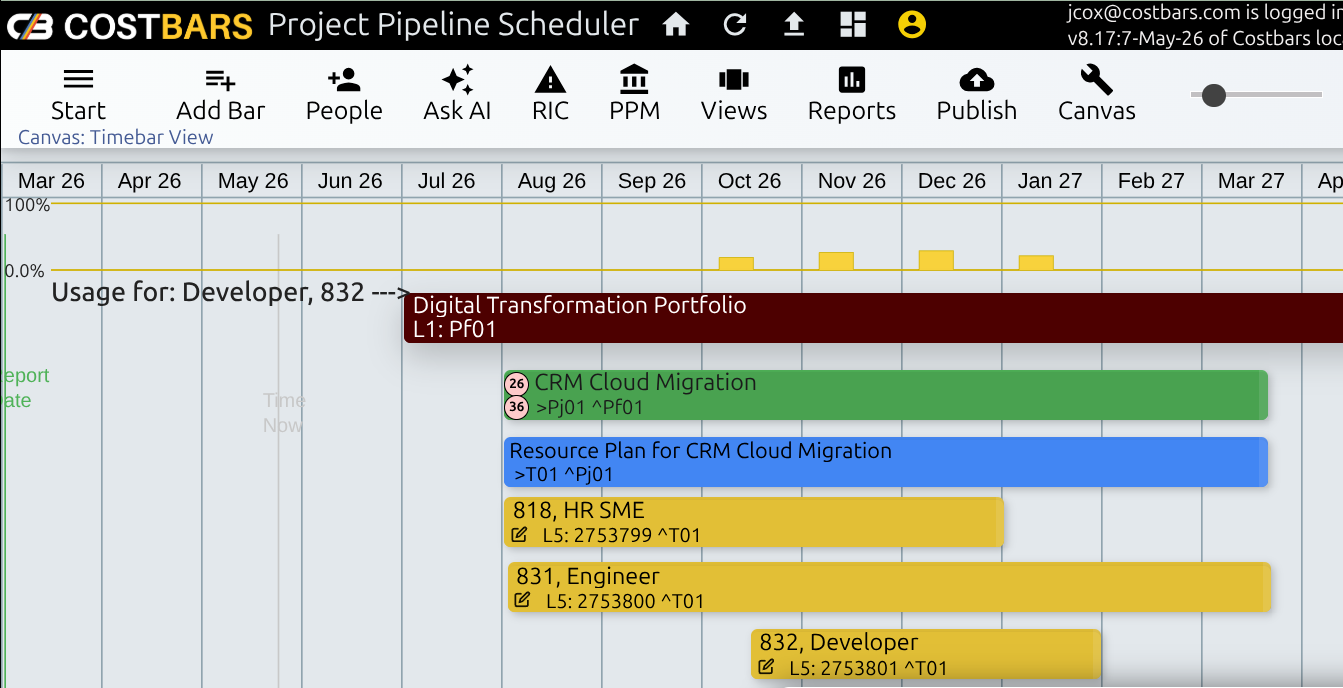
Percent Allocated Vertical bar Graph
As illustrated above in the Timebars section, check a resource's current usage/availability/percent allocated before assigning them, double-click their name in the Allocator — this displays a real-time availability breakdown on the Canvas showing their percent allocated across existing allocations and the full timescale, drawn directly on the canvas.
Reading the Supply vs. Demand Grid: The Portfolio View
In Costbars, configure the Supply vs. Demand Grid as follows for portfolio planning:
- View: Monthly — to see demand by calendar month, making it straightforward to read in quarters (Jan–Mar = Q1, Apr–Jun = Q2, etc.)
- Group By: Role — to aggregate supply and demand at role level across all projects in the portfolio simultaneously
This gives the portfolio manager the year at a glance, role by role. The Variance row is the decision gate: a project can only start when the Variance is non-negative across the roles it requires, for the full duration it needs them. If the Variance is negative for any critical role during the proposed project window, that project cannot start at the planned date without deferring something else.
The graphic below shows the demand generated by the CRM Migration Project where we assigned an Engineer, Developer and HR SME.

Connecting Costbars to Timebars: The Execution Handoff
The Costbars pipeline forecast and the Timebars in-flight execution view are two phases of the same resource management cycle:
Costbars establishes resource plans and project start and finish dates for new projects approved or awaiting approval, based on generic resource demand versus role supply.
PPM Prioritization — Projects move from New Status to In-Progress only after passing the Five-Step PPM Process, which validates strategic fit, resource availability, and execution readiness. Once approved, projects transfer to Timebars for execution manually. The Portfolio Manager periodically consolidates in-flight project demand from Timebars back into Costbars to show the complete portfolio picture — approved new projects plus updated execution data.
Timebars takes over — Generic role-based allocations are replaced by named resource assignments. All in-flight projects share a single Timebars instance. Project managers check out their project, schedule named resources, and publish changes back. The shared instance means all PMs see the live Supply vs. Demand Grid showing cross-project resource contention for shared resources — enabling visibility into real allocation conflicts.
Critical: PMs must coordinate access via team communication (calendar blocks,or a shared signup sheet). Only one PM should have the instance checked out at a time to prevent accidental overwrites. This works best in organizations where resource management is centralized (one resource manager or small PM team) or where projects have minimal resource overlap.
Portfolio feedback loop — The Portfolio Manager periodically extracts demand data from in-flight projects in Timebars and imports it into Costbars using the Enterprise Dashboard Sources feature. This shows how execution-level changes affect portfolio headroom and informs decisions about when the next pipeline projects can safely start.
This approach keeps the tools lightweight and avoids complex access controls, provided the team operates with clear communication and coordination protocols.
Summary: The Portfolio Manager's Quarterly Workflow
| Step | Tool | Purpose |
|---|---|---|
| Define supply by role | Resource Pool — generic resources | Establish total FTE capacity available per role |
| Create a Resource Plan task for each new project | Timescale Canvas — Add Bar | Give each planned project a single demand footprint |
| Assign generic resources to each Resource Plan task | Resource Allocator | Declare role demand without named assignments |
| Load Supply vs. Demand Grid (Monthly, Group By Role) | Supply vs. Demand Grid | Visualise full-year demand profile by role across new and in-flight projects |
| Identify overloaded periods | Grid — Variance row | Find when and where capacity is overcommitted |
| Adjust project start dates (what-if) | Grid — project date controls | Level the schedule within available role supply |
| Approve and transfer projects to execution | PPM Prioritization → Timebars transfer | Move validated projects from planning to execution |
| Consolidate in-flight project demand | Extract from Timebars → Import to Costbars | Update portfolio view with actual execution data and resource actuals |
| Confirm the leveled schedule | Timescale Canvas | Review and lock committed start and finish dates for remaining pipeline |
| Publish to Cloud Dashboard | Cloud Publishing | Share the updated resource picture with stakeholders |
Related Articles
Published: July 9, 2023
Last updated: May 26, 2026